Overview
Speccify Pro connects the product you want to build with the changes needed to develop it and the human review of the result. Your chosen coding client works in the repository; the app presents its specs, knowledge and product catalog.
This retained technical guide describes the earlier full edition at 0.11.5 for Mac and 0.11.0 for Windows. It is a reference for the preserved full workspace. See the Speccify workspace guide for the current Process interface.
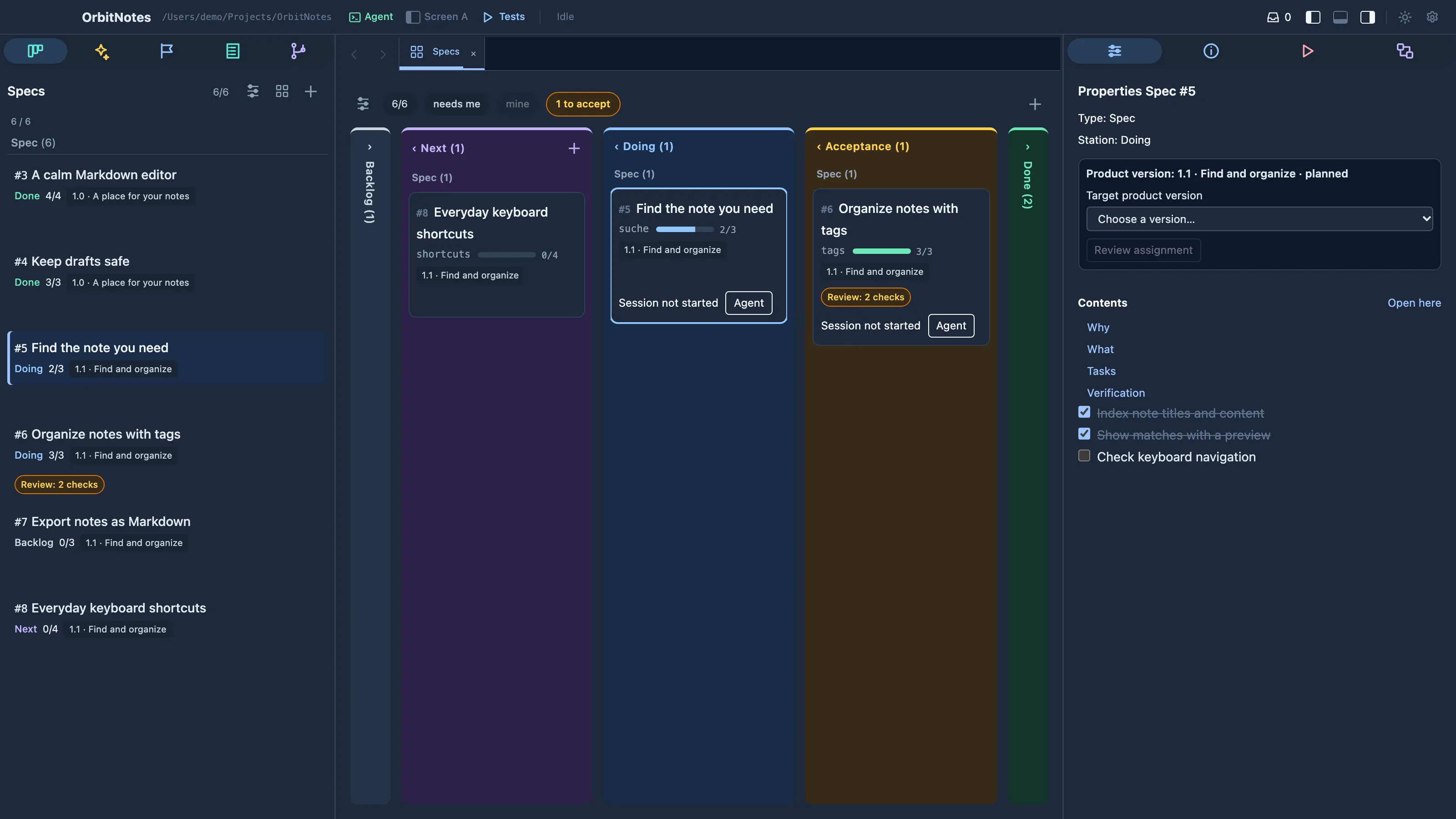
The historical screenshot illustrates the full edition at 0.10.0.
The division of labor
Section titled “The division of labor”- You choose what to build, authorize implementation, answer questions and accept the result or record findings.
- Your coding client works in the repository and uses its configured project instructions, tools and permissions. An open terminal does not grant new access.
- The project files retain specs, knowledge and product relationships. Git can share these with the team. Local drafts and window preferences remain local until explicitly saved through their own workflow.
Specs and playbooks can use a shared register branch independently of the code branch. Version planning, Features and Models can join that register after all clients are updated and Preview sharing project data… is explicitly confirmed. Existing local copies remain available for review. Skills and the catalog continue to belong to the selected content source.
The main window
Section titled “The main window”The navigator provides six resources:
| Tab | Purpose |
|---|---|
| Specs | Bounded changes, tasks, questions, findings and review |
| Skills | Reusable project instructions and optional relationships |
| Models | Graphical UseCase, UI and Workflow models, with System/Actor structures |
| Docs | Features, Notes, Playbooks and numbered development Rules |
| Versions | Product versions, branch relationships and assigned specs |
| Agents | Named personas, start profiles and explicit session starts |
Create named screens and assign resource or type tabs to them. Each tab is unique across the screens; a complete resource and its type tabs can coexist. The maximum screen count follows the number of registered subresources. See Screens and resource tabs for the available types, moving tabs and arranging additional windows. Selecting a resource in the Navigator or a collection sets the Inspector. Switching editor tabs or typing in another document leaves that selection in place. Its chosen section is retained when supported by the next selection.
Models supports systems, workflows and actor/UI references through an explicitly adopted model structure. Child documents open in modal editors while their parent is locked. Existing text UseCases become Features under Docs through a reviewed migration that retains identities and keeps the original catalog data available for recovery.
Each resource has a compact title line. The presentation button opens filtering, sorting and applicable grouping; Grid opens a collection tab, and Plus creates the appropriate resource. Docs’ Plus menu offers Feature, Note, Playbook or Rule.
A Grid click selects a record in the inspector while keeping the collection open. Double-click opens the document. Models and Versions also have a collection inspector with counts, source, revision and available actions.
Opening a folder
Section titled “Opening a folder”Use File → Open project… to choose an existing project, or New project… to create a named empty folder. Review its setup preview, including optional Git initialization, before creating it. No initial commit is made for you. The project opens in its own window. Projects and Workspaces remain available from the File menu. The leftmost Home button in a project toolbar returns to this main window.
Choose the content source explicitly in Settings → Project source when working with a workspace or a project containing several sources. See Projects and workspaces.
The window
Section titled “The window”The editor retains document and collection tabs. Drag to reorder them, use the tab context menu to close related tabs, or detach a document into its own window. Switching the navigator or inspector does not replace an unsaved document.
The Inspector has Properties, Infos, Actions and Connections, fixed at the top of the right sidebar. Its compact heading lists the name, resource type and Inspector section in that order. Actions appear in aligned rows and belong to the selected resource even before its document is open. Agent views give the terminal the full content area; configuration, session selection, information and actions live in the Inspector.
Project Appearance settings arrange document and collection views in the navigator, editor, lower right sidebar or full-width bottom area. Sidebar and editor areas can split vertically; Bottom can split left and right. The four Inspector tabs always remain together at the top right. Configure splits and view assignments in Appearance; drag the dividers in the working window to resize areas. Unused lower areas give their space back. The upper editor area retains the document-tab strip.
Markdown and files
Section titled “Markdown and files”Markdown opens visually. Format text with the icon toolbar, insert media or use Source to edit the same draft as Markdown. Visual returns to the visual view. Save explicitly; Discard changes is disabled for a clean document and requires confirmation for unsaved work. The inspector’s Contents outline jumps to document headings.
Use Window → File Editor or the right-hand </> toolbar button to open the editor for the current folder. Cmd-/Ctrl-click a local file link to open the separate File Browser, with the tree expanded to the file and its tab selected. Common text, images, media and documents have suitable editors or viewers. Specialized project files use their validated resource editors. External-editor configuration remains available for opening source files in your preferred application.
Connections lists local files and images linked from the selected Markdown document, including links in its current unsaved text. Cmd-click an entry to open that exact file as a tab and expand its location in the File Editor tree. Unavailable files have an explanation beside the link.
Colors
Section titled “Colors”Appearance also offers a shared theme library with Light/Dark color pairs. Choose a preset, edit colors and save a custom theme. A proposed partner color does not replace your other-mode value without your decision.
Keyboard shortcuts
Section titled “Keyboard shortcuts”Use the native File, Edit, View, Window and Help menus to discover commands and platform-specific shortcuts. On macOS, Cmd-comma opens global settings. Project settings have their own scoped command.
- Cmd-/Ctrl-Shift-N: New project.
- Cmd-/Ctrl-N: create the resource appropriate to the current resource area.
- Cmd-/Ctrl-Enter: submit a supported active save/create form, when valid.
- Cmd-/Ctrl-click: open a local document link in the File Browser.
Menu commands retain the currently focused window and the existing document owner. A visible dialog must be handled before unrelated menu navigation proceeds. Opening an Agent resource does not start a session.
One content source
Section titled “One content source”A project or workspace window has one selected source for its specs, skills, knowledge and domain catalog. Refresh reads that source and preserves existing drafts; it does not initialize or migrate a catalog. Loading, read errors and missing product setup have distinct states. If an older loaded result remains visible after a read error, it is identified as such.
The terminal keeps the directory of the project or workspace opened in that window. Handovers and contextual help include the actual content-source path. Confirm a source change explicitly; protected work is retained.
Shared actions and event workflows
Section titled “Shared actions and event workflows”Define actions once in Settings → Actions and Automation. Manual runs, compatible MCP clients and supported event bindings use the same named action and inputs. Local execution and automation approvals remain explicit. A proposal through MCP cannot approve itself.
Contextual help can start a separate session for a settings problem. A running help session is reused when returning to it. Review output and stop the relevant work explicitly. See Actions and automation.
Startup checks describe what needs attention and offer available repair or migration controls. Safe workflow updates preserve text outside their managed block; customized or linked instructions remain for review.
The app carries its own Python runtime and required packages. First launch and updates prepare that private runtime automatically, including offline. An existing Python installation is left alone. Environment offers repair controls if preparation fails; ordinary updates need no separate installation click.
Product setup, model upgrades and sharing the catalog are separate decisions. Review and confirm their previews explicitly. Opening a project or installing an app update does not migrate its catalog.
Product definitions and use cases
Section titled “Product definitions and use cases”Manage one or several products in Project settings → Products. IDs are stable; names are the readable labels. Each product owns its versions and graphical Models. Versions display status, notes, an optional base version, Git branch relationship and assigned specs. Recording release is separate from publishing software.
Enable project versioning explicitly when ready. Specs then require a target version. A general Spec may have no Feature or Model link. For a graphical Model, an initial Spec creates its first state; a change Spec connects a previous state to the next version. Filter the board by version to focus on current work.
Features are current Markdown documents without a product-version binding or separate timeline. An older catalog offers an explicit migration preview with a backup and a choice for conflicting drafts. See Models and versions before upgrading shared data.
Graphical Models retain accepted history and separate drafts. A state may be unversioned or valid from a minimum product version through a maximum version, inclusively. No maximum means it remains applicable until a later change replaces it. Accept a proposed Model state explicitly; editing does not accept it.
A model has a type chosen at creation. UseCase begins with a flowchart without UI elements. UI and Workflow have their own drawing libraries. Wireframe controls have stable connection points; workflows connect steps, decisions and saved Features or UI models, including individual controls. Drag the handle of an element onto another element to connect them. The diagram is stored as PlantUML with its layout in the Markdown draft; Source and Rendered preview stay available, and “Open diagram in its own window” shows the saved document in full view.
Existing catalogs are upgraded only through the explicit preview and migration workflow. Opening the Versions tab alone creates nothing.
Modules and relationships
Section titled “Modules and relationships”Modules and UI sketches are no longer resource tabs since 0.9.8. Existing files and architecture metadata are retained. Older catalogue documents may describe the earlier UI or specialist-app plans; they are not current navigation instructions.
Current relationships, such as a spec’s target version or a skill’s use cases, appear in Connections. A skill’s connections help find and group it; they do not restrict when it may be used.
Test evidence
Section titled “Test evidence”The separate Test evidence navigation is retired in this workspace. Existing evidence files remain available. Keep verification and findings with their spec, and open referenced files from the document. The older QA guide is retained as a historical description.
Hand a task to the terminal
Section titled “Hand a task to the terminal”Start a saved Agent, start contextual help, or open a dedicated Spec session from its card. The card reports the session state; returning to it opens the same terminal tab. The working directory and task source remain explicit.
Compatible desktop tools can read two separate kinds of UI context: the resource currently in the inspector, and selected document text with its originating artifact. A terminal-start snapshot is not proof of the current focus. Text selection itself does not grant permission or issue a new instruction.