Actions & Automation
This guide describes actions and automation in Speccify 0.11.0.
Building, testing and recording a Spec update are all actions: named work with explicit arguments and inputs. Open gear → Actions & Automation in the project or workspace’s settings. The same definition serves manual runs, the Exec MCP and approved events. It runs in the selected content source, which can differ from the terminal’s working directory.
Create and approve an action
Section titled “Create and approve an action”Choose New action, enter a name, and provide a command or a JSON argument
array. Each array entry is one argument; {name} inserts a declared input into
that entry. An empty array uses the command. For example, the shared catalog
in .agent/actions.json can contain:
{ "version": 2, "actions": [{ "id": "build-app", "name": "Build app", "kind": "command", "command": "sh scripts/app-build.sh {mode}", "argv": ["sh", "scripts/app-build.sh", "{mode}"], "inputs": [{ "name": "mode", "kind": "choice", "options": ["development", "production"], "default": "development", "required": true }], "target": "local" }]}The build script belongs to your project; Speccify does not supply it. Inputs support text, numbers, choices, file and folder paths, colors and boolean values. Missing values, invalid types and unsupported choices are rejected before a run. File inputs pass paths, without reading or attaching the file’s contents.
Create or Save definition identifies missing names and malformed
arguments at their fields. A failed save retains your draft and shows its error
beside the save control. Saving does not grant execution permission: use
Review and approve action, inspect the definition and check its confirmation
box. Repository confirmed flags cannot approve an action on another machine.
Changes to executable arguments or input definitions invalidate local approval.
Arguments are passed directly, without an implicit shell. Pipes, && and
$(…) are not evaluated; put a command chain in a project script when needed.
Input values remain data even when they contain quotes or shell-looking text.
Keep credentials outside shared action files and use the host’s configured
authentication; an action is not a secret store.
Run it and inspect the result
Section titled “Run it and inspect the result”Fill in the inputs and use Review invocation to inspect the resolved
argument list. Run starts the process. Output streams live, with a stop
button, progress from [n/m] markers and supported JSON chart lines.
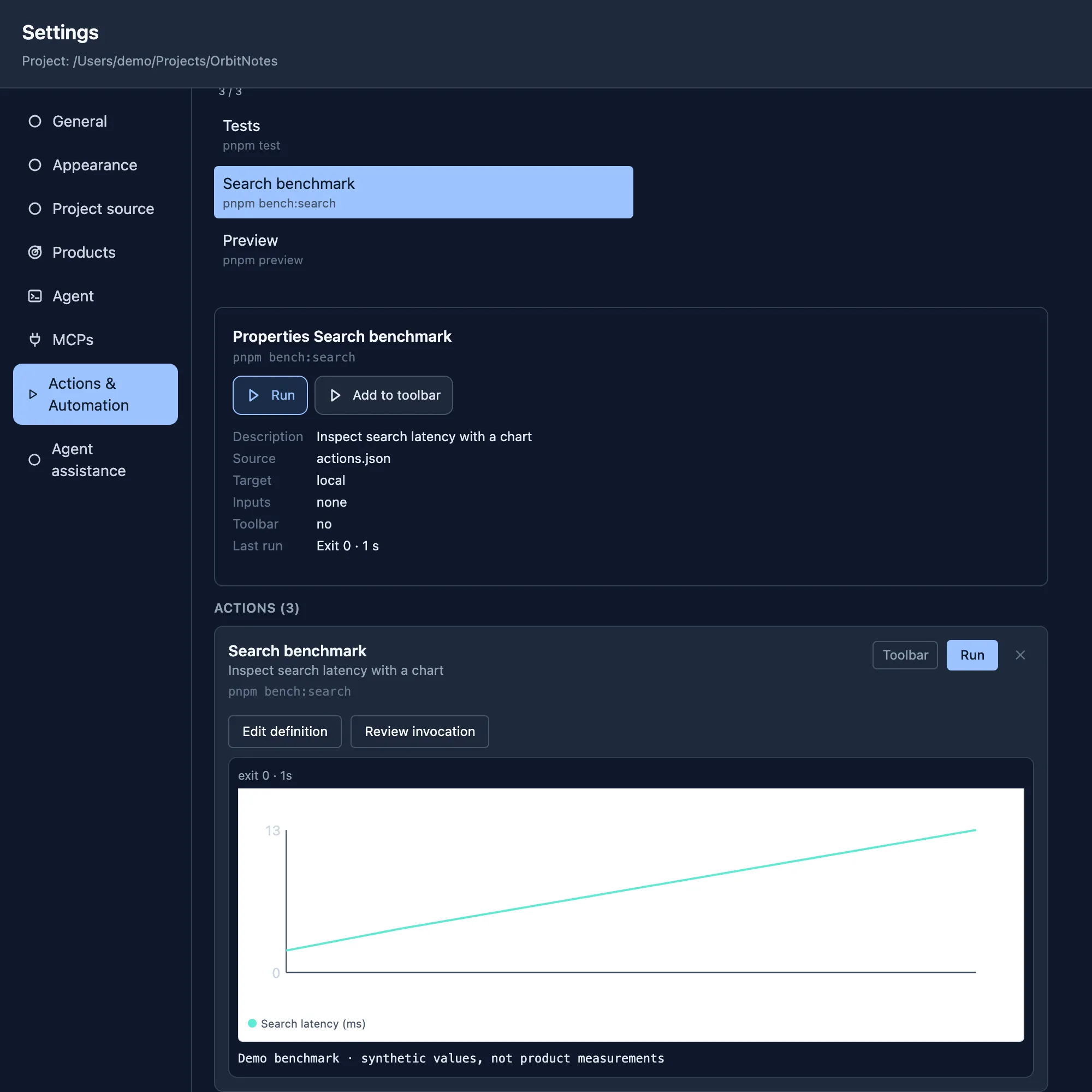
Toolbar pins an approved action in the working window. An action without inputs runs and displays output there; one with inputs opens the settings flow. An action running in settings must finish or be explicitly stopped before that window can close. Closing settings does not silently end the process.
An external client can use the Exec MCP’s list_actions and run_action with
the same stable action ID and named string inputs. Local approval is still
required. Its result identifies the action, definition, source, trigger,
status, exit code, duration and bounded output. Raw run_command uses its
separate allowlist; approving a catalog definition is not unrestricted shell
access.
Bind a Spec event
Section titled “Bind a Spec event”In the same settings area, add an event binding and select an action. The supported events are Backlog → Next and question answered. Map each input to a fixed value, its action default or an available event field such as the Spec title, file or answer text.
Automation starts disabled. Enabling opens a preview of the actual workflows and arguments, with an initially unchecked acknowledgment of mistakes, unwanted changes and possible usage or costs. Approval applies once per source project and configuration. Unchanged runs, restarts and resuming a still valid paused configuration do not need another dialog. New or changed bindings do.
Codex Queue uses an explicitly chosen thread UUID. Claude Print starts a new independent noninteractive session per event, using the official host’s configured access. It does not continue an existing interactive conversation or bypass tool permissions. Local program actions use the same event-to-input mapping. Review delivery history and pause automation when necessary.
Opening files, filesystem notifications and register synchronization do not replay events. Moving a Spec to Next prioritizes it without granting permission to implement it. Automation approval does not change applicable service terms.
The running app’s Desktop UI MCP lets an agent in another terminal read the configuration and submit a revision-checked proposal. Review, edit or discard that proposal here. It cannot enable itself, and an existing approved configuration stays active until a replacement is confirmed. See the workflow use case.
Board flow
Section titled “Board flow”A Board flow runs an ordered set of Specs using a chosen Agent and explicit start configuration. Review the Specs, their source, target versions and checkouts before starting. A flow holds at most 32 entries.
Choose single-step review when you want to inspect each result before continuing. Continuous mode requires its own confirmation. It still respects action permissions, open questions and personal acceptance: a successful command alone does not complete a Spec or approve the next one. Completion needs the Spec’s tasks and verification to be recorded as well.
Pause lets the current step finish; Stop stops the current flow’s work. Other sessions stay independent. Restarting the app pauses continuation, and a failed step is not silently retried. See Agents and sessions for choosing an Agent and returning to its terminal.
Update an existing project
Section titled “Update an existing project”The compatibility notice checks workflow guidance, CLI availability, legacy actions and automation. Apply safe updates explicitly here; the same local steps run before a new agent starts in the selected source. Reattaching a terminal preserves the running process. Legacy action migration makes a backup and preserves unknown fields and toolbar metadata without trusting shared approval flags.
Customized files or conflicts remain for review with the project-migrate
skill. CLI installation or repair is a separate action with a log and final
check; ordinary agents and configured MCPs can run without it. See
installation maintenance.