Overview
The Speccify app is a desktop app (macOS, Windows and Linux) for running
a project with a terminal agent. The agent (Claude Code, Codex, or
any other) does its work in the repository; the app renders that same
repository for you, the owner: the files and the Git state, the specs
on their board, the skills and tools, the project actions. Nothing
lives only in the app — every spec, playbook, and setting is a plain
file under .agent/, committed with your code.
The division of labor
Section titled “The division of labor”- You decide what gets built — as a spec you move from Backlog to Doing — answer the agent’s questions, review the results, and commit — from the app.
- The agent works the spec in Doing: ticks its tasks, records decisions and what it verified, and writes down what it did — from the terminal.
- The repository is the single shared state. The app picks up file changes on its own: when the agent ticks a task, your board moves; when you answer a question in a spec, the agent’s next run sees it.
The contract between the two sides is .agent/agent.md — read by
every agent; files like CLAUDE.md and AGENTS.md just point to it,
so any agent product lands in the same workflow. The first time you
open a project, a workflow banner offers Set up: it writes the
versioned workflow block into .agent/agent.md, creates the
/spec-next and /spec-ask skills and the .agent/specs and
.agent/playbooks folders, and links .claude/skills and
.agents/skills to .agent/skills (a junction on Windows) — so
both hosts see the same skills.
Opening a folder
Section titled “Opening a folder”The dashboard’s Projects tab asks for one thing: a folder. A Git repository opens as a project in its own window. A folder that holds several repositories opens as a workspace — grouped projects, one shared board, one agent in the parent folder. A plain folder opens as a simple project. Windows you leave open come back on the next start.
The window
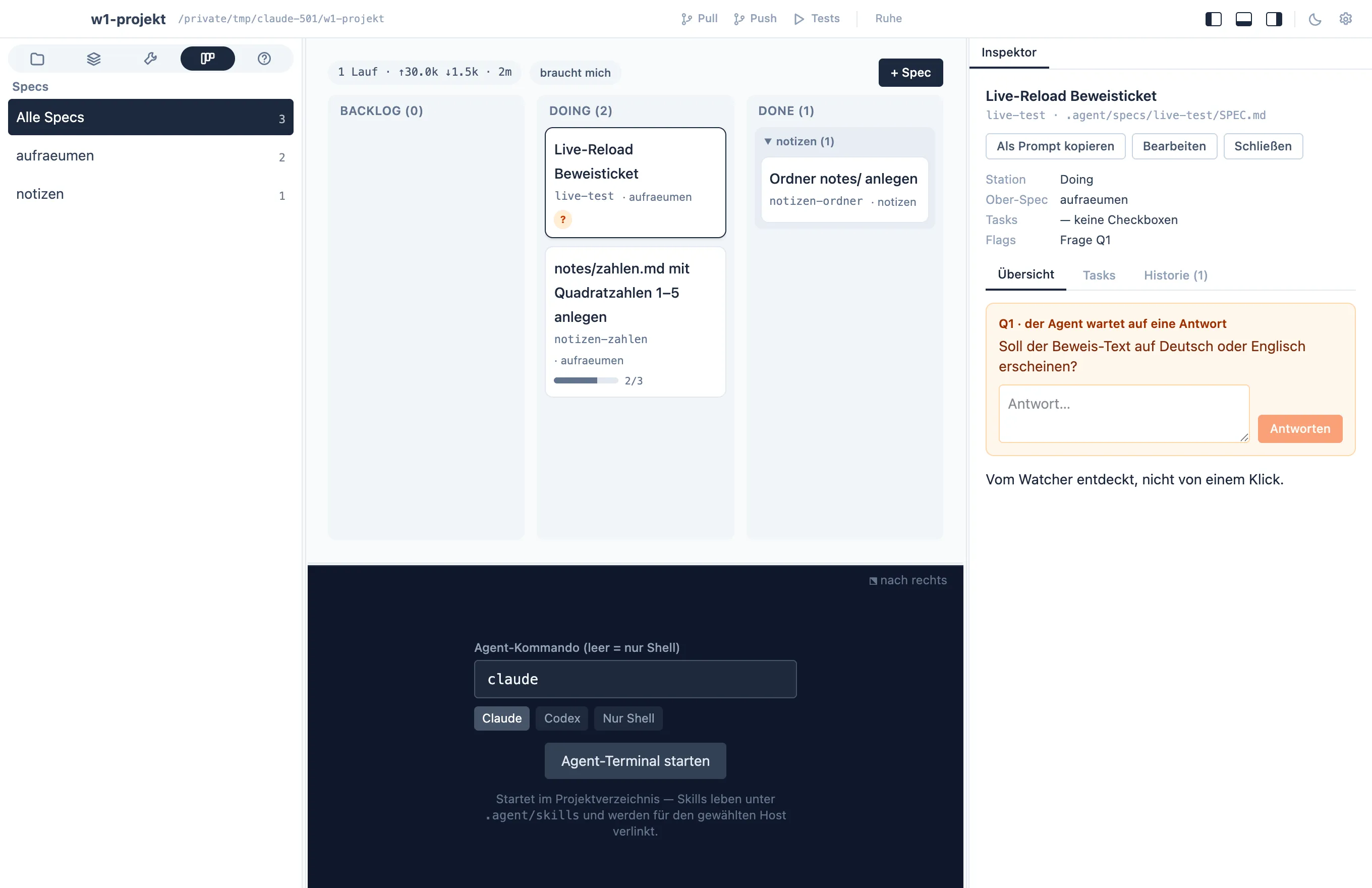
Section titled “The window”A project window follows the pattern of Xcode: a navigator on the left, the content in the middle, an inspector on the right, the agent terminal at the bottom, a toolbar on top.
- Navigator. An icon bar with five areas — Files (files, Git),
Orga (playbooks, skills), Tech (tools, actions, MCPs,
agent), Specs, and Help — and, for areas with several tabs,
a second row naming them. Below that, the list of the active tab.
An empty list never stays blank: it says what is missing and offers
the next step — + Spec, + Playbook, Browse sources,
git init, or a prompt for the agent. - Content. The selected item at full width: the specs board, a playbook as a document, a file in the editor, a diff.
- Inspector. Details and actions for whatever is selected on the left — a spec with its Overview, Tasks and History tabs, a skill with its origin, a tool with its per-platform status, the commit panel in the Git tab. Hide the inspector and the same panel appears above the content.
- Terminal. The agent terminal sits under the content, resizable;
one click moves it into the right sidebar instead. Claude starts
with an app-chosen session id, and exactly that session is
resumed on the next start (
claude --resume <id>) — the agent reads its own transcript and carries on. When no id is known (Codex assigns its own) or the session is gone, nothing starts silently: the terminal offers the host’s own picker, its “most recent session” convenience, or a fresh start. - Toolbar. The project name on the left; in the middle, the
buttons you chose (Pull, Push, Commit, Agent, and actions you
pinned there) and the activity view — what is running right now
(an action,
git push, a save, the agent terminal while output flows) with its duration, and finished agent runs from the spec history with spec and tokens; on the right, toggles for the three areas, light/dark, and settings. On macOS the toolbar is the title bar.
All areas resize by dragging; sizes, visibility, toolbar, and the terminal position are remembered per project across restarts. Keyboard: ⌘1–⌘5 switch areas, ⌘0 / ⌥⌘0 / ⇧⌘Y toggle navigator, inspector, and terminal (Ctrl on Windows).
Hand a task to the terminal
Section titled “Hand a task to the terminal”Select a spec, skill, tool or playbook and choose Auftrag…. The handover sheet names the project, lets you describe the task and choose its context, then shows the text before delivery. You can copy it or send it to the project’s terminal, then press Enter there to submit it. Host permissions still apply. A warning on a newly started terminal reminds you to wait for the host’s input prompt and handle any trust dialog before pasting. Speccify does not detect whether the terminal host is ready to receive the task.
Where to go next
Section titled “Where to go next”- Files & Git — the project tree, a code editor with search and blame, and Git with hunk staging, history, branches, commits by you or by the agent.
- Specs — one spec per piece of work in
Backlog,Doing,Done; tasks as checkboxes; per-spec history; badges for specs that wait on you. Playbooks live next to them. - Workspaces — several repositories in one window: grouped projects, a shared spec board, one agent in the parent folder.
- Questions — how the agent asks and how your answer reaches its next run.
- Actions — project commands the app runs itself, with live output, pinnable to the toolbar.
- Skills & tools — what the agent can do here, including skills expanded from Speccify sources.
Start with specs — it is where a normal day happens.