Specs
Dieser Inhalt ist noch nicht in deiner Sprache verfügbar.
A spec is one piece of work you want to accept in a single review:
a feature, a refactor, an investigation. It lives in its own folder,
.agent/specs/<slug>/SPEC.md. The board separates work in progress from
results awaiting your review:
Backlog → Next → Doing → Acceptance → DoneAcceptance is a view of specs with ready: true and needs_human: true,
excluding Done and historical archived content. It preserves the saved station;
the standard file format uses Backlog, Next, Doing and Done. Custom stations
remain available, including a separately identified station named Acceptance.
There are no tickets. The steps inside a spec are checkboxes under
## Tasks; the agent ticks them as it goes, the board shows 3/7.
A spec that is too big for one review gets child specs (parent:); one
that is too small becomes a task in an existing spec.
A spec is a file
Section titled “A spec is a file”---station: Backlogorder: 10created: 2026-09-09needs_human: falseready: falseopen_question: nullparent: nullmodules: sources, dashboard---# Import skills from any git repository
## WhyOne to three sentences: the occasion, the benefit, who needs it.
## WhatWhat is in scope — and what explicitly is not.
## Acceptance- When a git URL is added as a source, then the app clones it once and shows its skills in the browser.- When access is missing, then the app shows git's message and how to sign in.
## Decisions- D1 (2026-09-09, BO): managed checkouts, no tags needed.
## Tasks- [x] Source model in Rust- [ ] Library in the dashboard- [ ] Docs
## VerificationWhat was run and what was seen.
## QuestionsThe first heading is the title, the folder name is the id — with a
running number in front (012-import-skills), so a spec is
“spec 12” in conversation and in commit messages. New specs take the
next free number; older folders without one get theirs from the
number button above the board. Three optional flags matter to
you as the owner:
needs_human: true— a human must judge the result or verify something only they can access. Technical checks belong in Verification. The implementer setsready: trueand leaves the spec in Doing for you.open_question: Q1— the agent is blocked on a question you haven’t answered yet. See Questions.- No
order— the spec is an idea; it sorts last in Backlog.
The gate, and what “done” means
Section titled “The gate, and what “done” means”Backlog/Next → Doing is your approval. Next holds upcoming work; putting a
spec there does not authorize implementation. The agent starts a spec only
when you moved it there (or told it to). Before building it attacks
the spec — missing or untestable acceptance, contradictions, hidden
dependencies — fixes what it can in the spec itself and asks the rest.
Then it works through the tasks, records decisions and what it
verified, and appends an agent_run line to the history.
Done means: every task ticked, ## Verification written, the
history line appended. With needs_human the agent sets ready
instead and the card appears in Acceptance. Use Accept after reviewing it
to move it to Done. Finished specs stay in place:
there is no separate archiving step. Existing historical content in
.agent/specs/archive/ remains discoverable and read-only in spec actions.
Acceptance: what you check yourself
Section titled “Acceptance: what you check yourself”When the agent sets ready, it writes a ## Review section: only what
you have to verify yourself, one check per heading, each as
Given / When / Then with a single checkbox, plus the build to check:
## Review
Build: 7d4c9c9 · local app
### R1 · The terms match our team's workflow- Given: the new project overview is open with our example data- When: you read the labels and descriptions- Then: they describe the team's work in terms everyone understands- [ ] ok
The inspector shows this as an Acceptance box at the top. Tick the
checks, then Accept moves the spec to Done. If something is wrong,
Finding… under a check records what you saw (### B1 · bo · <time>),
and Back to the agent sets ready: false — the agent works through
the findings and sets ready again. Cards show Acceptance 2/5, the
header counts the specs waiting for you and filters to them. These
checkboxes are not tasks and do not change the task progress. A waiting
spec without checks shows its Acceptance points and offers a handover
that asks the agent to write them.
The board in the app
Section titled “The board in the app”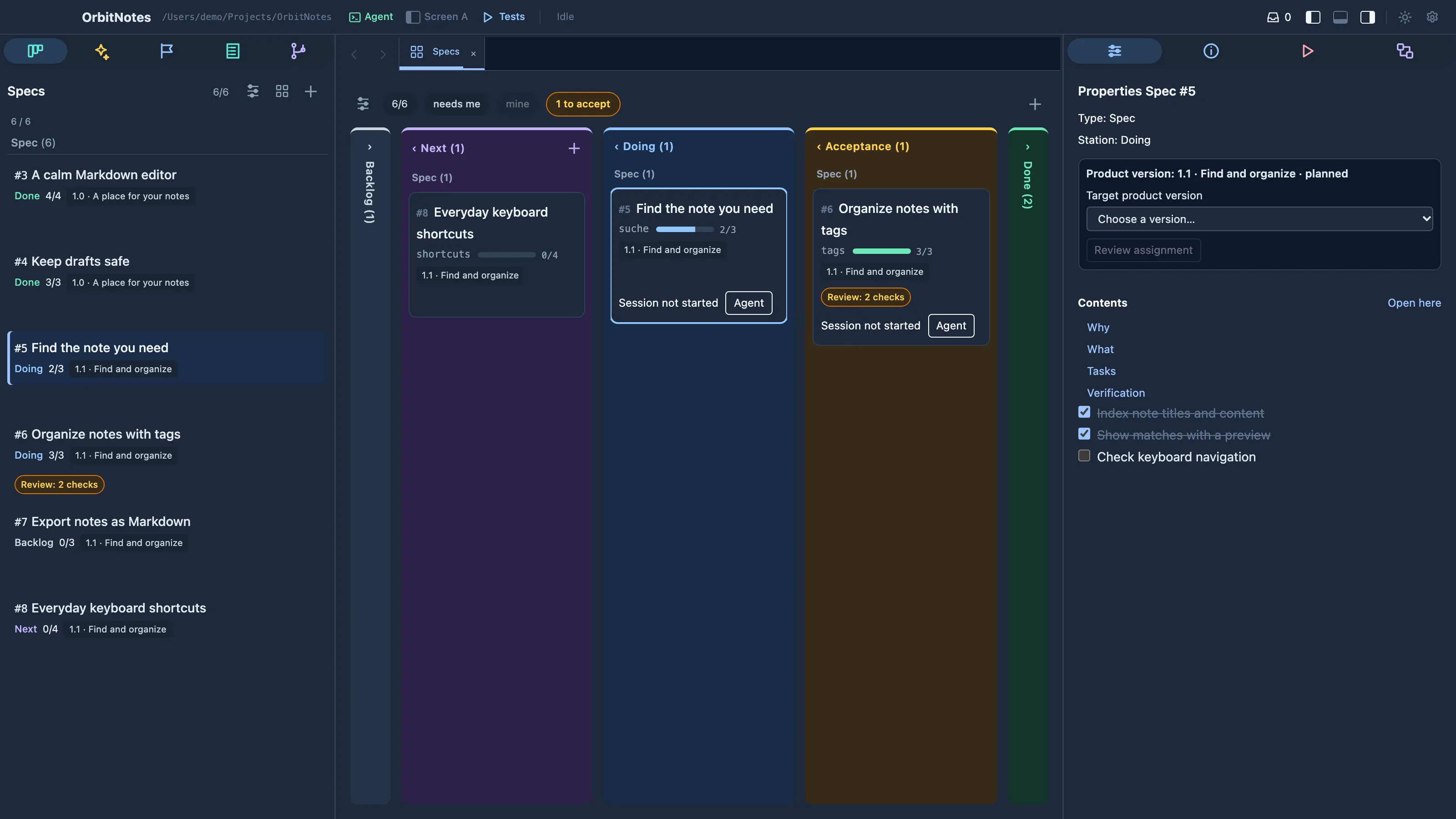
Click a card to select the Spec in the inspector. Properties, Info, Actions and Connections show its details, available commands and relationships. Double-click a card to open its document in an editor tab. The document includes tasks, decisions, verification and questions; drag & drop moves ordinary cards between saved stations. Cards awaiting acceptance use Accept or Back to the agent; they cannot bypass review by dragging. + Spec creates a spec from the template. The navigator lists every spec with its number, station and progress. Search by title, number or path and filter by parent above the board, including when the navigator is hidden. The needs me filter shows only specs waiting on you, and Done is grouped by parent so finished work stays legible.
Every column, including Acceptance, can collapse horizontally into a narrow strip with a vertical name and count. Click its header button or use Enter/Space to expand or collapse it. The remaining columns gain room; ordinary cards can still be dropped into collapsed station columns. Done starts collapsed. This layout is a local preference for the selected content source, retained across reopening and shared between its project and workspace views without writing project files.
Expand Done to browse what finished recently — by default the last 14 days,
newest first, and at most 10 cards at once; a link-styled Mehr
anzeigen reveals the next 10. Everything older sits collapsed under
Älter and stays clickable and searchable. The column header holds
both settings (7, 14, 30, 90 days or all; 5, 10, 20, 50 cards or all).
These time-range and card-limit controls are board settings: Speccify stores
them as board.doneDays and board.doneLimit in the selected source’s .agent/settings.json,
so they are versioned and the same for the whole team. “Done since” is the
last move to Done in the spec’s history; a spec without history counts
by its file’s modification time. A search or parent filter always shows
every match.
Files linked from a Spec
Section titled “Files linked from a Spec”Cmd-click on macOS or Ctrl-click on Windows opens a local file link in the separate File Editor, with its tree expanded and the file selected. Relative paths resolve from the saved Spec’s directory. Existing document drafts remain protected. See Files and editors.
Choose a program in Open with… and optionally remember it for that file extension in your local app profile. Alt-click a link to choose again. External editor… on the Spec opens the saved Spec file itself. External programs receive saved contents, not an unsaved draft.
Missing files, unavailable programs and paths outside the selected source project produce a visible error. Symbolic links must stay within that project. Web links open in the browser.
Modules: who touches what
Section titled “Modules: who touches what”Several agents or people can collide when two Specs change the same part of the system. Record the affected modules and compare them before starting work:
- The project names its modules — its architecture map — under
modulesin.agent/settings.json: a name (a slug such asterminal,board,api-auth), one line of description and optional paths. The list is versioned with the project and shared by the team. Specs use as few modules as possible, so that specs can run in parallel. - Every spec names the modules it touches in its front matter:
modules: terminal, board. The implementer maintains the field and adds a module before it changes code there. - Review overlaps before starting. Compare the Spec with other work in Doing. Dedicated session starts show the source, version and checkout and require review of detected overlaps or shared checkouts. A board card is not proof that parallel edits are safe.
Whether to proceed, wait or split the work is your decision. Keep each Spec’s modules small. If the project has no module list, agree on one from its code structure before distributing work.
One register for the whole team
Section titled “One register for the whole team”Working in feature branches does not have to mean everyone sees a
different board. Above the board the app offers to turn .agent/specs
into a shared register: a branch called specs in the same
repository, mounted as a Git worktree at .agent/specs. The path stays
the same for people and agents, but commits there land on specs
regardless of which code branch is checked out. The app commits and
syncs the register by itself — commit, fetch, rebase, push, never force
— and shows the state in the board header: up to date, n unsent,
n new from the team, or a conflict. When two people change the same
line, both versions are shown side by side and you decide; nothing is
lost. A fresh clone mounts the register with one click. Projects without
a register keep their specs in the code branch as before.
Product versions and UseCases join this register only after compatible clients are installed and the sharing preview is explicitly confirmed. A note syncing successfully does not prove that an older local catalog is shared. See Share versions with the team.
Start and return to a Spec session
Section titled “Start and return to a Spec session”Use the Spec’s Agent control to choose a saved Agent and review the start configuration. The session binds this Spec, its source, target version and checkout. Returning to the card reconnects to its existing session. See Agents and sessions for background work and stopping one session, or Board flow for an ordered sequence.
Who works on what, in which branch
Section titled “Who works on what, in which branch”Moving a spec to Doing — by drag or with Take over in the inspector —
records the person (your Git identity) as owner and the code branch as
branch, suggesting spec/012-slug when you are on main. Cards show
initials and branch; mine filters to your specs and Doing by
person lists who has what in which branch. The inspector compares the
declared branch with what Git shows — your checkout is elsewhere, the
branch is missing on origin, someone else pushed last, no movement for
days — and only says so; switching branches needs your confirmation.
Release puts the spec back into the Backlog.
What changed while you were away
Section titled “What changed while you were away”Cards that teammates changed since you last looked carry a new mark
with author and commit subjects; one click confirms. A question
addressed with an: your@mail shows up as question for you and counts
in the board header. Optionally, an outgoing webhook posts station
changes, ready, new questions and register conflicts that originate on
your machine to Slack, Teams or Mattermost — the URL lives in the
dashboard settings or an environment variable, never in the project; the
switch is per project.
History: the spec’s memory
Section titled “History: the spec’s memory”Each spec folder has an append-only history.jsonl — one JSON line per
meaningful step:
{"actor":"agent:claude","event_type":"agent_run","summary":"Tasks 3–5; skills: speccify","spec_id":"git-sources","timestamp":"2026-09-09T09:05:30Z","tokens_in":9000,"tokens_out":2200}The app logs what the app changes; the agent logs its own steps.
The event types (spec_created, station_changed, spec_edited,
agent_run) each get an icon in the history tab, and the board’s KPI
row is computed from the agent_run events — runs and effective
input — so the cost of the work stays visible next to the work.
Playbooks: procedures, not work
Section titled “Playbooks: procedures, not work”A playbook describes a procedure — release, deploy, onboarding a
machine. It never finishes; you run it whenever the occasion comes
around. .agent/specs/playbooks/<name>.md, plain markdown next to the
specs — with a shared spec register they are shared and synced like the
specs, without a commit on your code branch. Projects from before keep
them in .agent/playbooks/ until Set up moves them (links to specs
are adjusted). A description in the front matter and Copy as
prompt hand it to the agent. Rules lists Notes, Playbooks and numbered
Rules; its Plus menu creates the chosen type. Edit a document, then save
explicitly. Switching views retains an unsaved draft.
Draft playbooks
Section titled “Draft playbooks”Choose Draft when creating a playbook to collect ideas or research without
turning it into a standing instruction. The file stores status: draft in its
front matter. Existing playbooks without a status remain active. The list can
filter by status, and the detail view explains whether the content is binding.
Use Aktivieren to explicitly make a draft active, or Als Draft markieren to make an active playbook a draft. Editing or saving alone preserves the status and other metadata. Concurrent changes produce a visible save conflict and keep your unsaved text.
Draft handover offers review or editing, preserving the nonbinding status even in a customized prompt. Speccify rereads the file before copying or inserting the request. An unknown or duplicate status also requires clarification before use. Workflow policy v10 tells the host to treat drafts as ideas, not instructions; this is a workflow agreement, not a filesystem access restriction. Policy v11 adds the module rules described under Modules.
Where the format comes from
Section titled “Where the format comes from”The spec workflow is modeled on
OpenSpec (one folder per
change and tasks as checkboxes) and on
Kiro’s specs (testable requirements,
a human gate between phases). Speccify keeps the format to a single
SPEC.md and adds what those tools leave to you: the board, the
gate, the history with token counts, and the question protocol.
Speccify is meant to fit into what you already use — the heart is
the skill and tool contract management; the spec workflow around it
is one way to run a project, not the only one, and reading OpenSpec
projects directly is on the list. (Not to be confused with GitHub’s
Spec Kit, whose CLI is called specify.)
Specs, playbooks, skills — which is which?
Section titled “Specs, playbooks, skills — which is which?”- A spec is work: it has a station, tasks, and an end.
- A playbook is a procedure you run again and again.
- A skill is know-how the agent applies on its own when the situation matches — see Skills, tools & sources.