Files & Git
Dieser Inhalt ist noch nicht in deiner Sprache verfügbar.
The Files area is what lets you leave the IDE closed for agent-driven work: browse the project, read and edit files, see what changed, stage, commit, pull, push. It is not a full IDE — no language server, no refactoring — and that is deliberate: the agent in the terminal does that part better than a rebuilt IDE would.
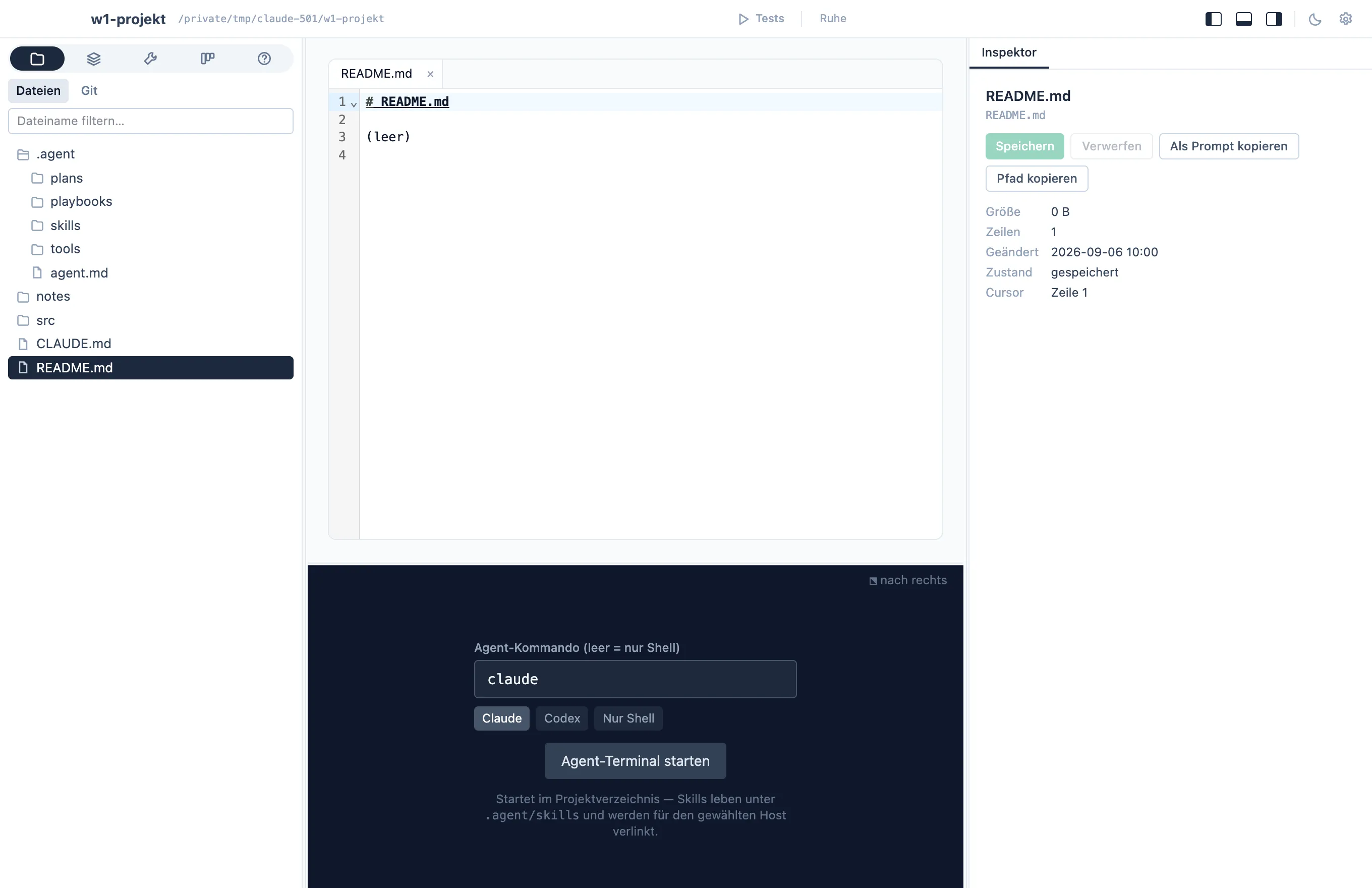
The navigator shows the project tree, read folder by folder as you
expand it. .gitignore rules apply and .git stays closed, so
node_modules and build output do not clutter the list; a name filter
sits at the top. The tree follows the disk: a file added, renamed or
removed from outside (Finder, terminal, another editor) appears within
about two seconds in the expanded folders, and an open file that you have
not edited reloads its content. The same watcher keeps the Git tab, the
board and the other tabs current, whether or not they are visible.
A click opens the file as a tab above a code editor (CodeMirror) with syntax highlighting for Markdown, TypeScript, JavaScript, Python, Rust, JSON, YAML, HTML, and CSS, search with ⌘F, and the usual editing keys. ⌘S saves; a dot on the tab marks unsaved changes, and every keystroke is also kept as a draft that survives an app restart. The inspector shows size, line count, modification time, and the cursor line, with Save, Discard, Copy as prompt (path and line as the reference, so the agent can open the exact spot), and Copy path. Its History tab lists the commits that touched the file; click one to see that commit’s diff for exactly this file, and copy it as a prompt. Blame in the margin (a checkbox on the File tab) shows commit and author per line right in the editor. Rename… and Delete… (to the trash, a second click confirms) sit next to it; + File and + Folder at the top of the navigator create new entries. When the agent changes a file you have open but did not touch, it reloads.
The navigator’s Search mode searches file contents — the same
.gitignore rules as the tree, Aa for case, .* for regular
expressions — and a hit opens the file at that line. The agent
terminal does the same for path:line in its output: ⌘-click (Ctrl on
Windows and Linux) on a compiler or test error jumps to the spot.
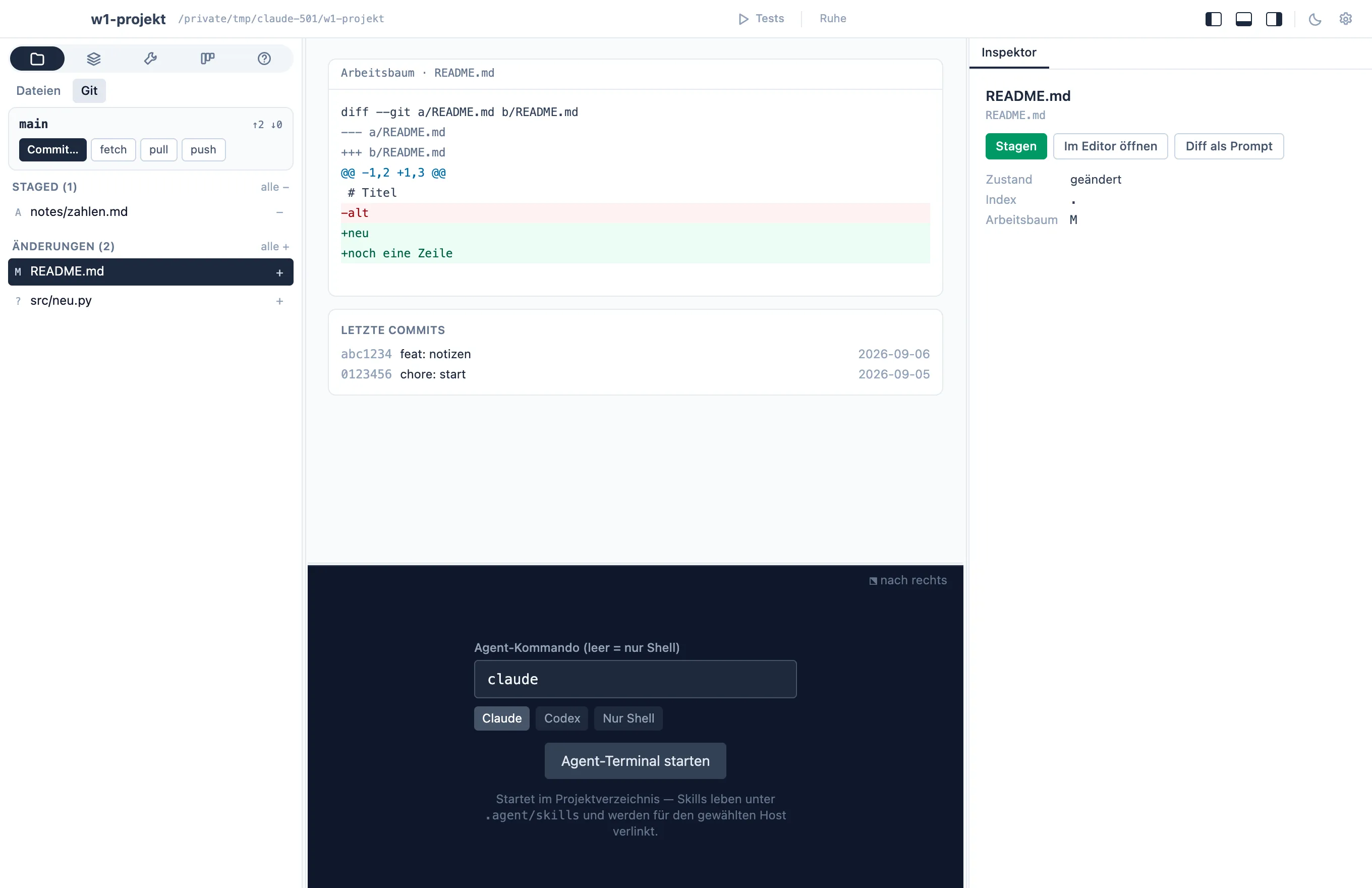
The Git tab runs on the git you already have installed — which
is why your credentials, keychain, and SSH agent just work, exactly as
in the terminal. The navigator header shows the branch, its upstream,
and how many commits you are ahead or behind, with fetch, pull,
and push buttons that stream their output and show up in the
activity view. Below it, the changed files in two lists, Staged and
Changes; + and − on a row stage or unstage it, all + /
all − do it for the whole list.
Click a file for its diff in the middle. Every hunk carries a Stage hunk (or Unstage hunk) button, so only the lines that belong together go into a commit — the rest stays in the working tree for the next one. The inspector names the file’s state and offers Stage, Open in editor, Diff as prompt, and Discard… (a second click confirms; untracked files are deleted). Its tabs: Changes, and History — the commits that touched this file, a click shows that commit’s diff.
Click a commit in the Recent commits list to open it in the inspector: the files it changed (click one to narrow the diff to it), the full message, Copy hash, and Diff as prompt.
Committing
Section titled “Committing”The Git workspace panel is always visible in the Git tab (the Commit… button in the branch header jumps to it; it stays reachable with the inspector hidden). It names the repository or worktree it acts on, and offers:
- A commit composer — a subject line and an optional description. The draft is saved locally per project, so switching files, diffs or branches does not lose it. Commit (or ⌘⏎ / Ctrl+⏎) commits only the staged index — the button says how many staged files go in, and Check index lists them. An empty message or an empty index is explained, not silently ignored. Nothing is staged for you and nothing is pushed.
- Commit request to the terminal — types a request into the agent terminal: read the staged diff (or, with nothing staged, stage what belongs together), write a Conventional Commit message, commit, don’t push. The request names the target repository. Confirm with Enter there, as with any prompt.
Running state, success and errors of every Git action stay visible until the next one; a button never starts the same action twice.
Branches
Section titled “Branches”The branch button on the panel opens branch management: search your local branches, see each one’s upstream and whether it is checked out in another worktree, and switch, create, rename or delete with a confirmation step that names the repository, the current and the target branch. Switching with local changes that would be lost stops and asks — nothing is discarded or stashed on its own. The current branch and branches that are not merged cannot be deleted by accident; there is no force-delete. Remote branches are listed read-only. Merge, rebase and conflict resolution stay in the terminal: conflicts are shown, not resolved.
The last commits are listed under the diff. Without a repository, the
navigator offers git init; with a clean tree it says so — what the
agent changes appears here the moment it happens.
The toolbar has Pull, Push, Commit, and Agent buttons built in, next to any action you mark for the toolbar; which of them show, and in what order, is set per project in the settings popover behind the gear.