The product, up close
More knowledge.
Less starting over.
Start with what makes Speccify different: reusable skills, locally verified tools and work you can follow. The familiar IDE essentials come after.
Real app views in the macOS layout, using a fictional project. Some app controls are still German; the website is English-first.
01 / Knowledge that travels
Keep the hard-won parts.
The next project shouldn't have to rediscover what the last one taught you. Turn that experience into a skill your agent can read, adapt and use.
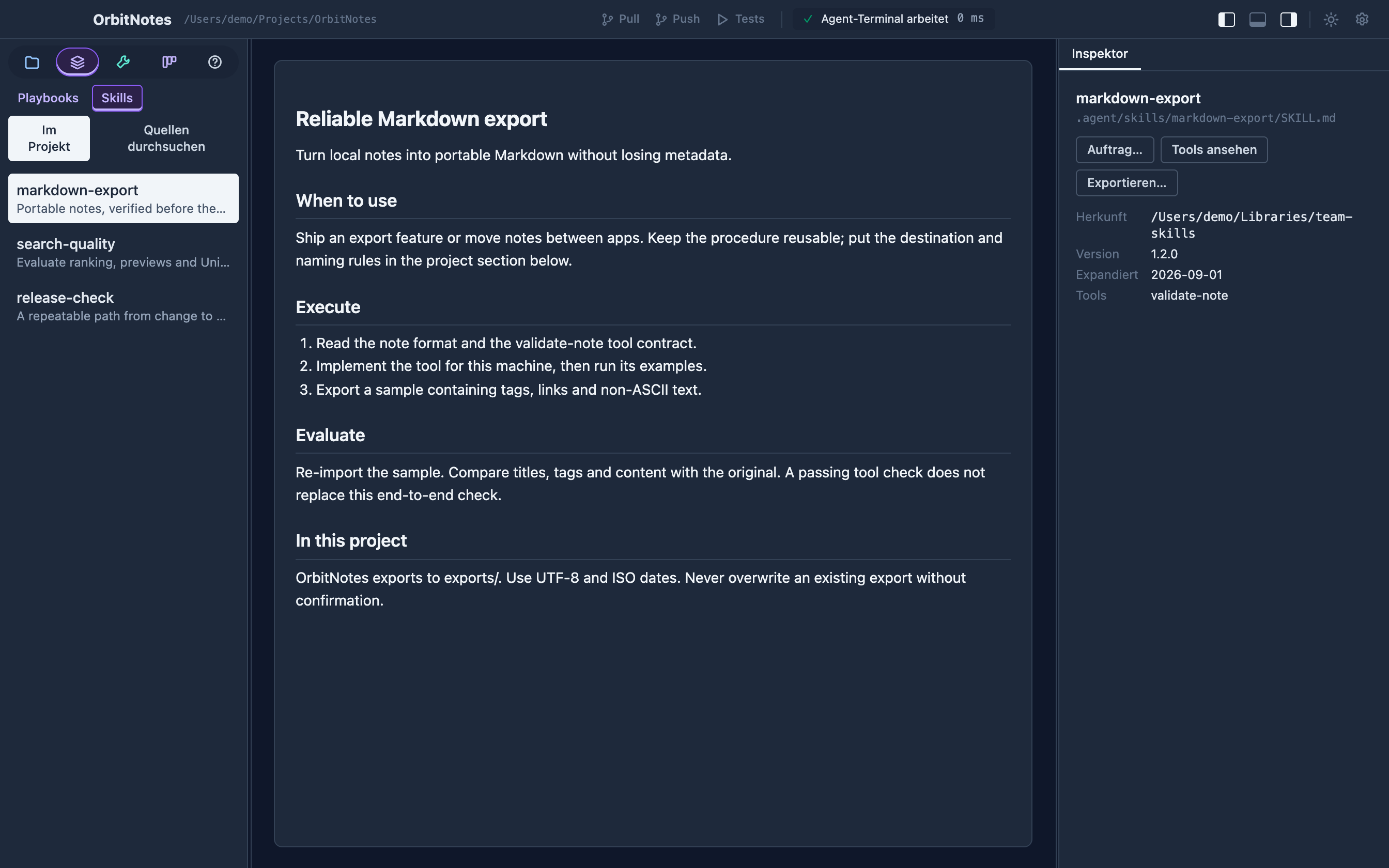
- Browse project skills and libraries from Git repositories or local folders.
- Inspect a skill's source, version and related tools before using it.
- Expand into plain SKILL.md files; keep local details in an In this project section.
- Export reusable knowledge back to a library. Import and export commands go to your terminal for confirmation.
02 / Portable intent. Local execution.
Share what a tool must do.
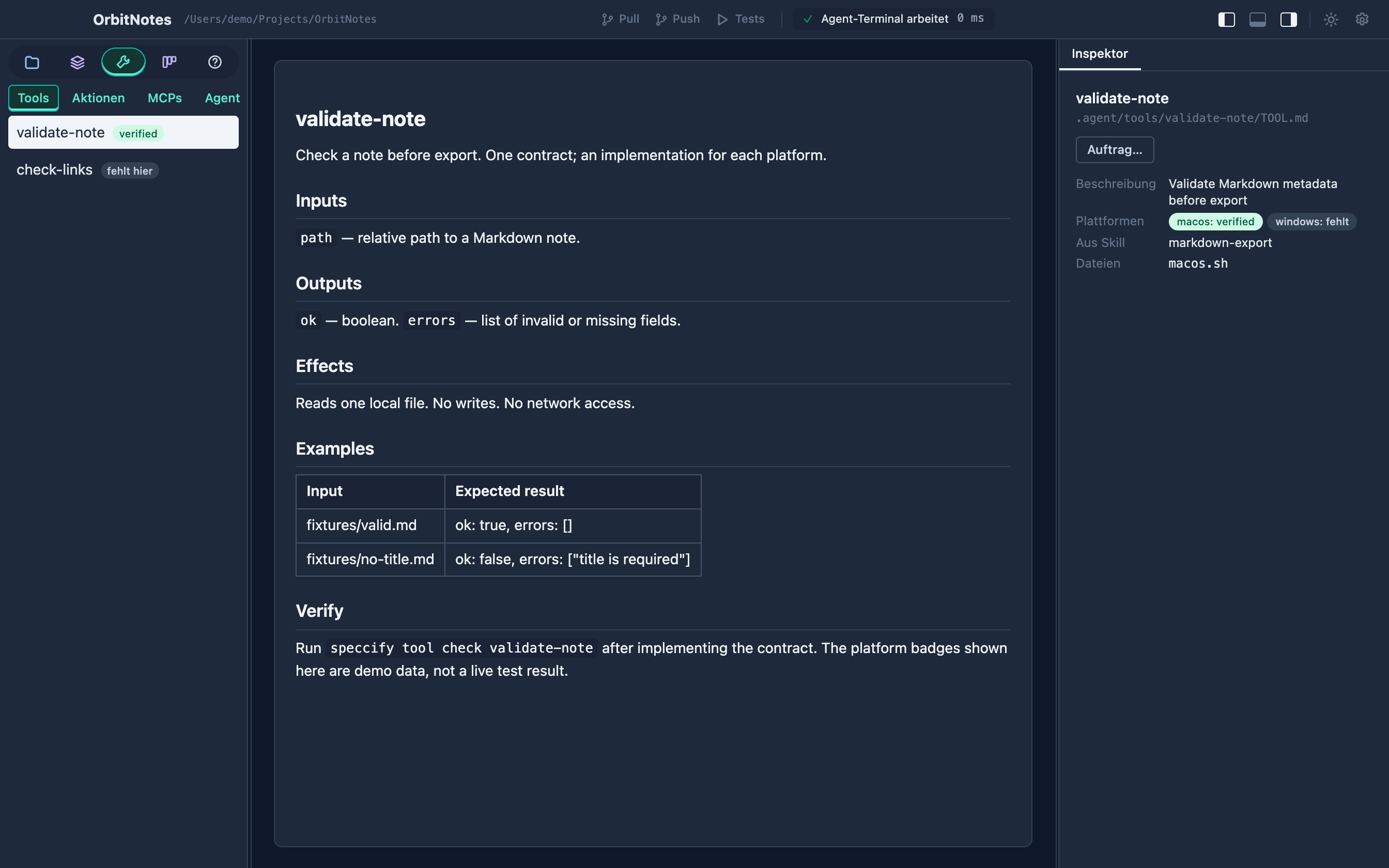
A script that worked on one machine is not a guarantee on the next. Share the contract: inputs, outputs, effects and examples. Implement it for the project and platform that will actually run it.
- Read TOOL.md contracts alongside the skills that use them.
- See which platforms have verified, implemented or missing tools.
- Run speccify tool check to test implementations against the contract's examples.
- Use speccify verify to check recorded skill, bundle and expansion drift. A passing tool check is not a substitute for reviewing the result.
03 / Work you can follow
A visible path from intent to review.
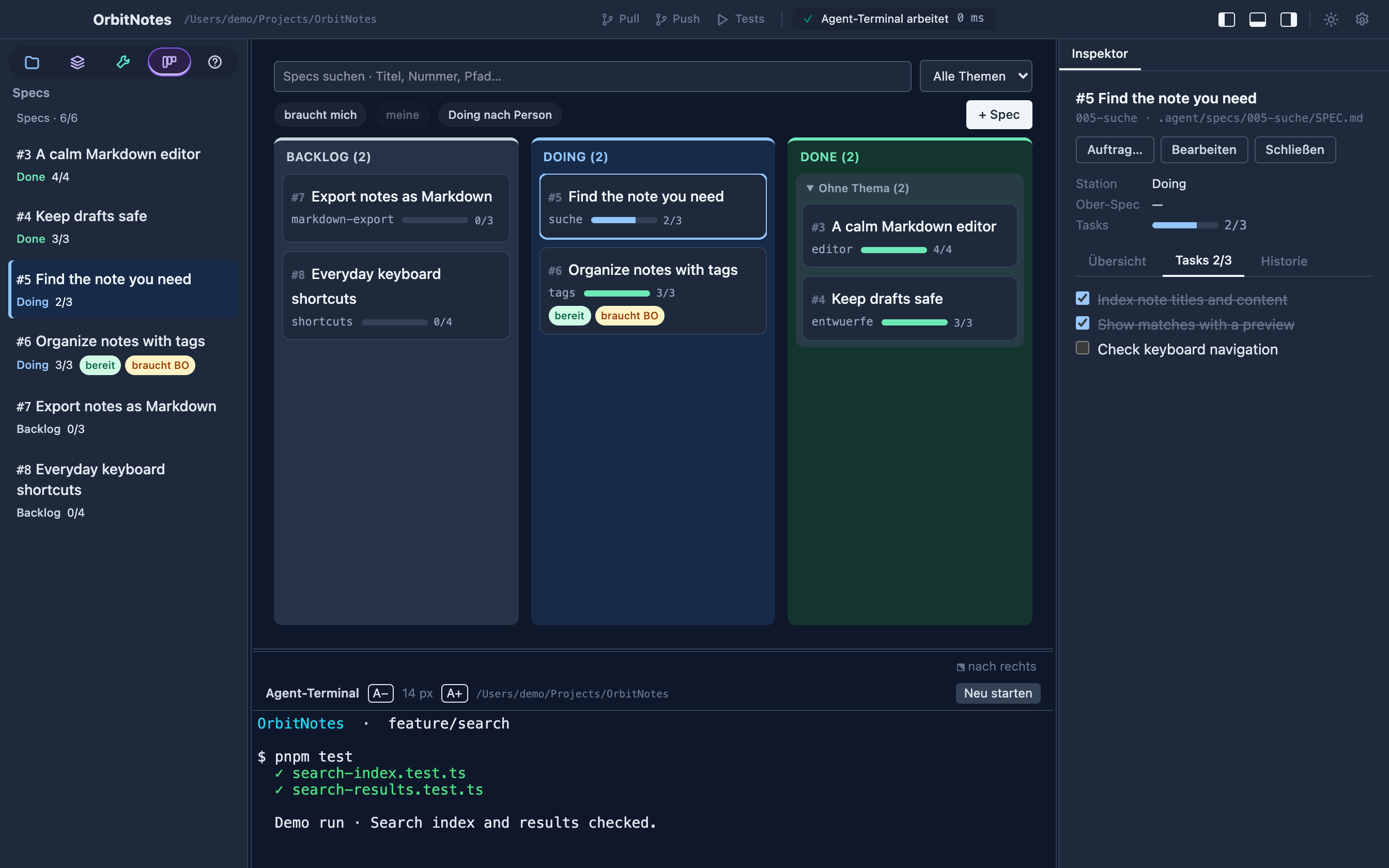
Keep the request, tasks, decisions and verification in one spec. The board makes that file-based workflow visible without making the app the only way to use it.
- Move specs through Backlog, Doing and Done; mark work ready for human acceptance. Finished specs stay in place.
- Share the spec register on its own Git branch; see owners, working branches and changes from teammates.
- Review Markdown, check tasks, answer open questions and inspect history.
- Preview a task handover with its selected context before sending it to the terminal. Recorded runs can show token and duration totals when those measurements exist.
04 / Several repositories, one place
Open the folder. The app sorts out the rest.
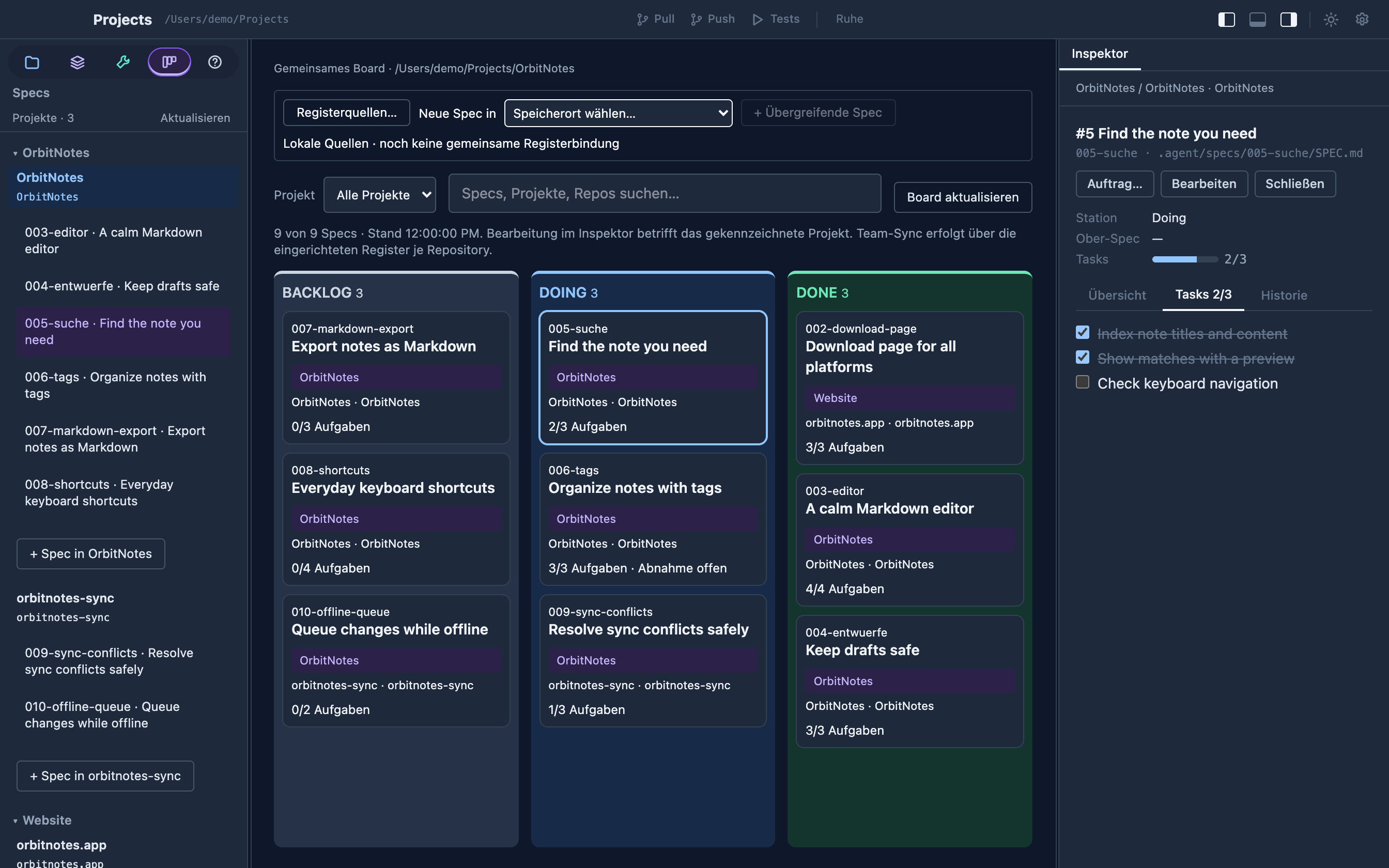
Products rarely live in one repository. Open the parent folder: Speccify finds the repositories inside, groups them into projects and shows their specs on one board — while every repository keeps its own files, Git and terminal target.
- Open a single folder: a Git repository opens as a project, a folder of repositories as a workspace.
- Discover direct child projects by default. Set discovery depth from 1 to 16 in Settings when you need nested repositories.
- Group repositories into named projects and follow their specs on one board. Grouping stays local; each spec is edited in its own repository.
- Start one agent in the parent folder with a structure summary — on your click, never automatically. Files, Git, actions and drafts keep their repository targets.
05 / The memory beside the work
Keep the why close to the how.
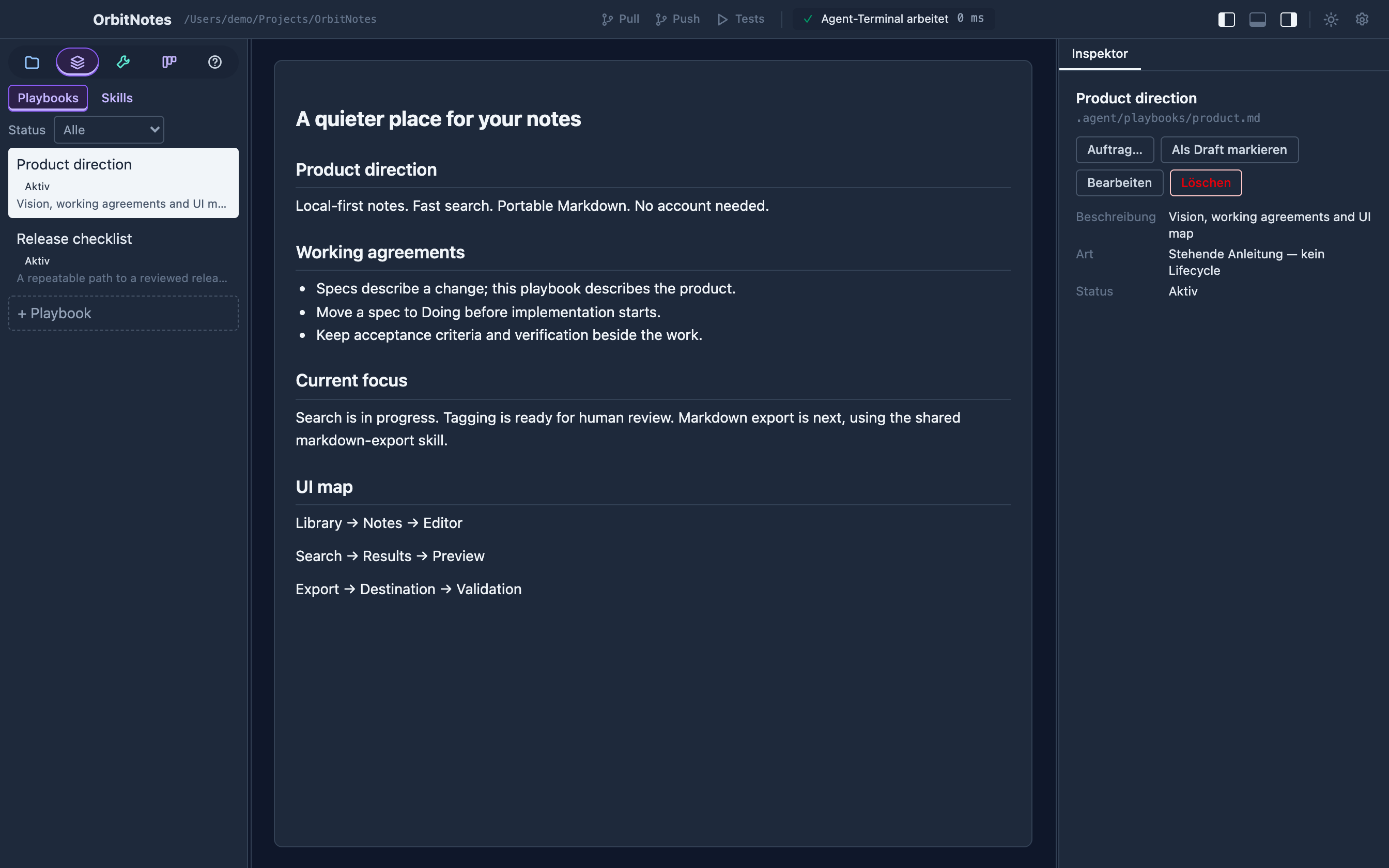
Specs finish. Your product vision, release procedure and working agreements keep evolving. Give that standing knowledge a home beside the project.
- Create, read and edit Markdown playbooks without a task lifecycle.
- Keep product direction, UI maps, onboarding and release routines in the repository.
- Use the inspector to copy a playbook's path and content as a prompt.
- Keep edits and local drafts in the same workspace as the work they guide.
06 / Your choice of agent
One project. Your tools.
Use a terminal agent with your project's files and conventions. Speccify gives you a place to inspect the setup; it doesn't replace your host's permissions or account.
- Run your chosen agent command in an integrated terminal and inspect startup diagnostics.
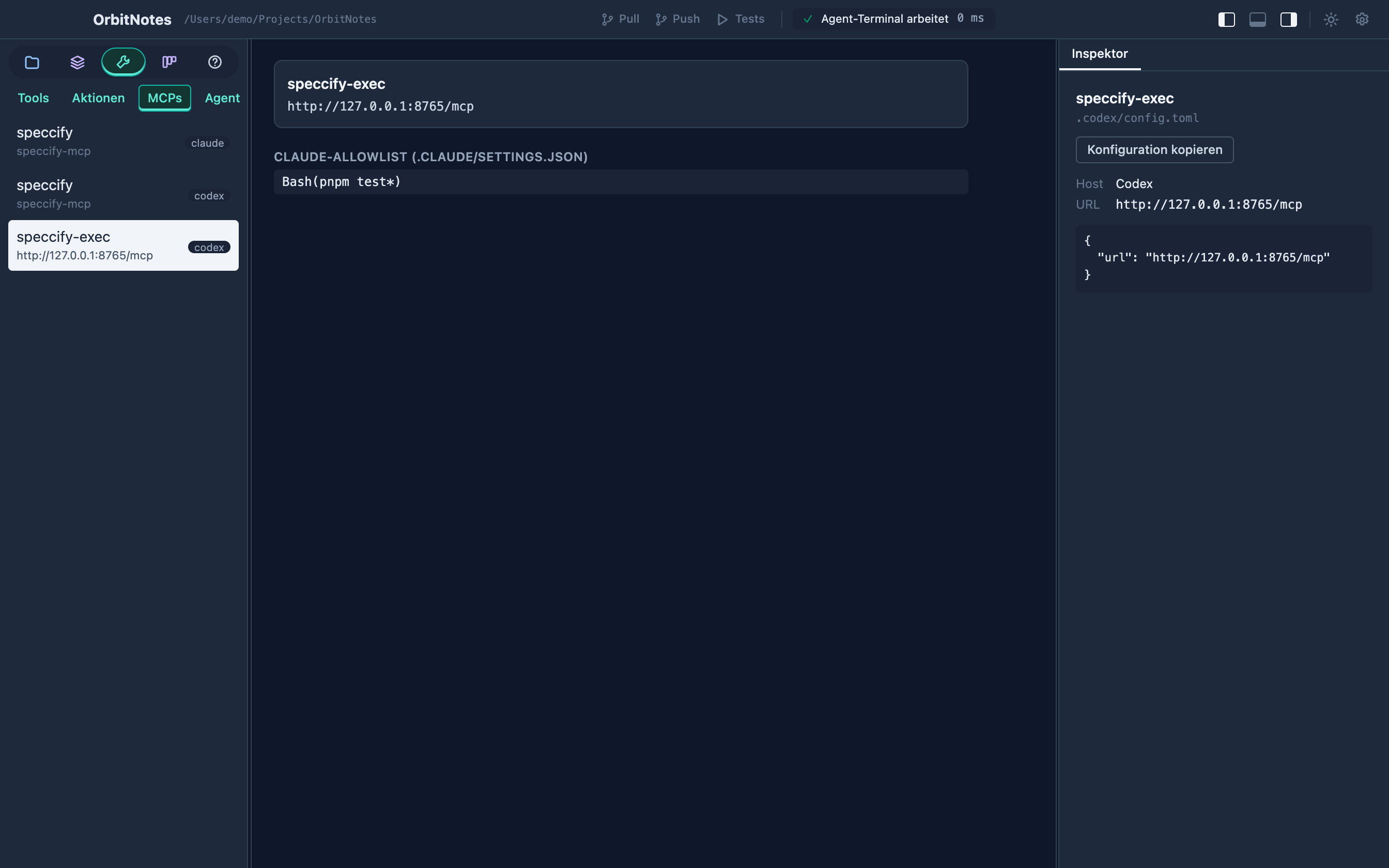
- Read project guidance and inspect project MCP entries for Claude Code and Codex.
- See server commands or URLs, configuration paths and Claude allowlists; copy configuration from the inspector.
- Use the CLI or Speccify MCP adapter over the same core. The dashboard also manages bundled MCP servers, logs and client configuration.
07 / A result you can inspect
Give repeatable work a button.
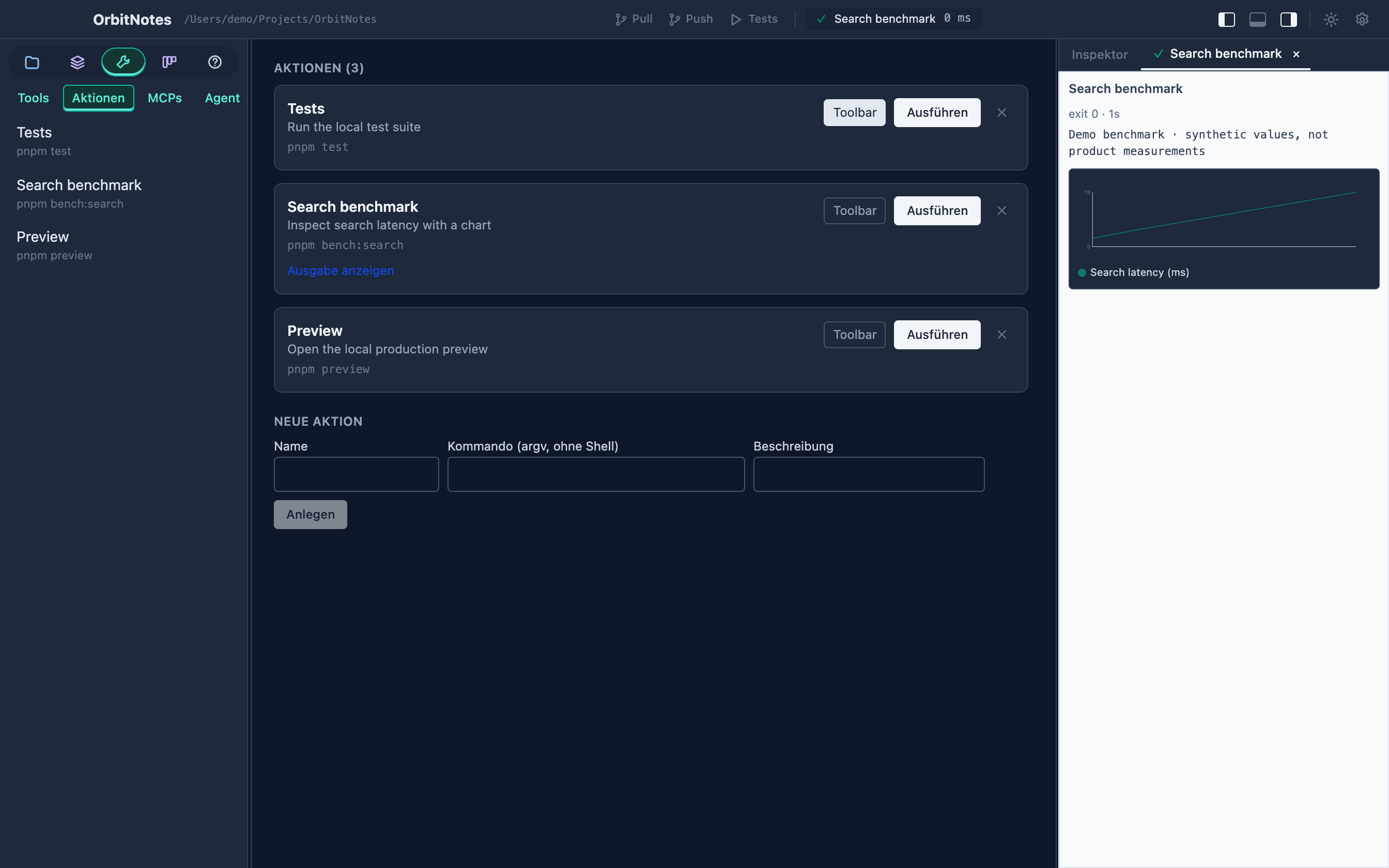
Tests, previews and small checks belong within reach. Named project actions let you run them and keep their output beside the task you're reviewing.
- Define actions in .agent/actions.json and pin useful ones to the toolbar.
- Review suggested actions and pending command approvals before use.
- Follow separate output tabs, inspect exit status and stop running actions.
- Structured output can render charts alongside text. General-purpose profiling workspaces remain a future direction.
08 / Familiar workspace essentials
Make the change right here.
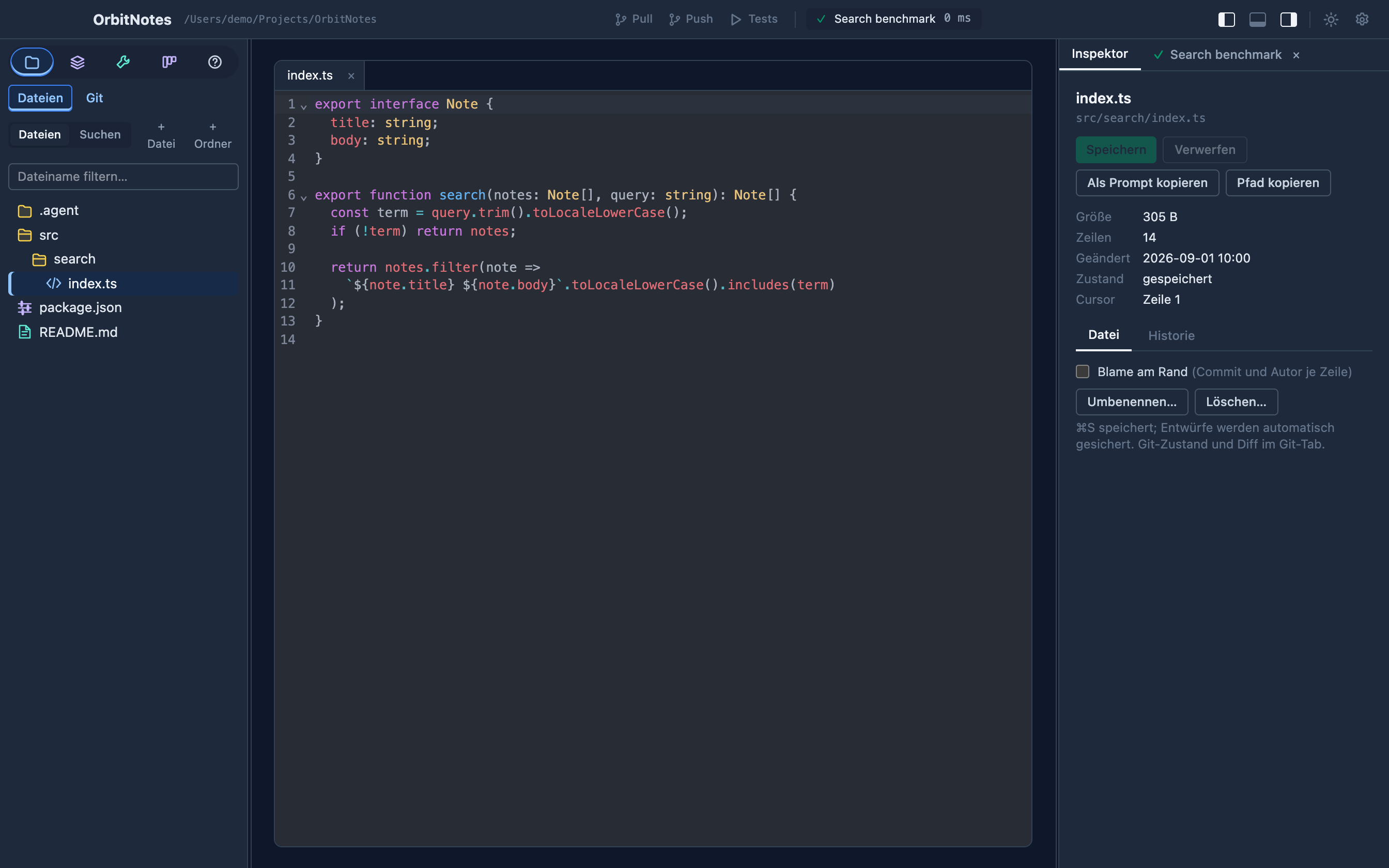
The everyday IDE capabilities are here to support the workflow: inspect the files, make a change and keep the surrounding project knowledge close.
- Browse the project tree with file-type icons and open files in editor tabs.
- Edit code with syntax highlighting and inspect Markdown with a rendered preview.
- Create, rename and delete files; inspect file details and history.
- Resize or hide panels, dock the terminal and choose a light or dark theme. Integrated help and environment settings live in the app too.
09 / Familiar workspace essentials
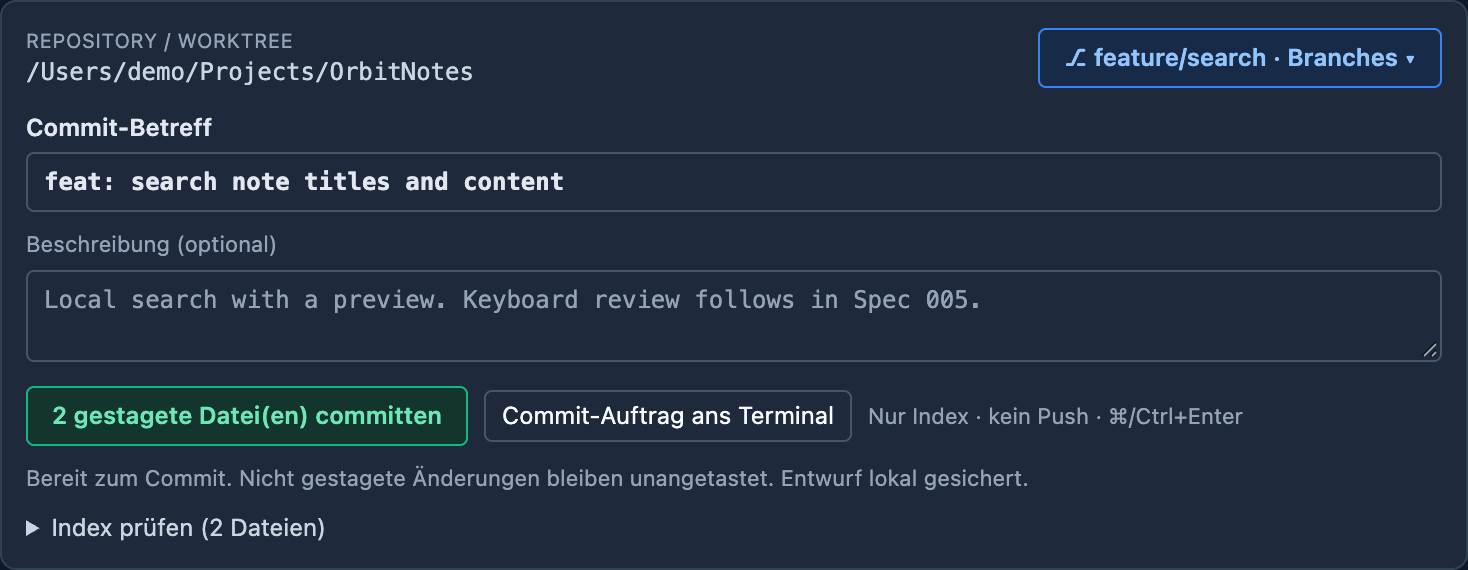
Review exactly what goes into a commit.
Git rounds out the workspace. Useful, familiar tools for reviewing and shipping the change — not the reason you need another IDE.
- Inspect working-tree changes, diffs and file history; stage files or individual hunks.
- Write a commit subject and description in a visible composer with a saved local draft.
- Preview the staged index and manage local branches with checks before switching.
- Inspect tracking state, fetch, pull and push from the project.
Bring your next project.
Start with a local project or workspace. Teams can share specs through Git and run the separate self-hosted web board.
Download Speccify